
Laptops often become very hot when they are used for extended periods, leading to reduced performance, slow speeds, and even crashes or blue screens. At this point, finding a suitable cooling solution is crucial. So, are laptop coolers effective? Which laptop cooler is the best? How should you use a laptop cooler? Let’s explore the essentials of laptop coolers and address the common issue of poor cooling.
Sources of Heat in Laptops
- Heat Sources: The main heat sources in a laptop include the processor, graphics card, memory, and mechanical hard drive. Whenever these components are powered on, they generate varying degrees of heat.
- Built-in Cooling System: Laptops come with a factory-installed cooling system designed to manage heat dissipation. The effectiveness of this system significantly affects overall performance.
- User Environment: Dust accumulation over time can hinder the laptop’s cooling efficiency, leading to overheating issues.
- Hardware Configuration: High-heat components should be distributed throughout the laptop to prevent excessive heat buildup and potential hardware failures.
- Air Duct Design: A well-designed cooling air duct is essential for optimal airflow within the laptop.
- Heat Dissipation Space: Limited internal space can restrict heat dissipation. Even ultrabooks with low-power processors can face cooling challenges.
Airflow Direction: Inlet or Exhaust?
Is a laptop cooler useful? Absolutely. High temperatures can severely impact the lifespan of your laptop. A quality cooler can significantly enhance heat dissipation, especially for laptops with inadequate cooling systems. While a laptop may already have a good cooling design, using a cooler can further improve performance.
Types of Laptop Coolers
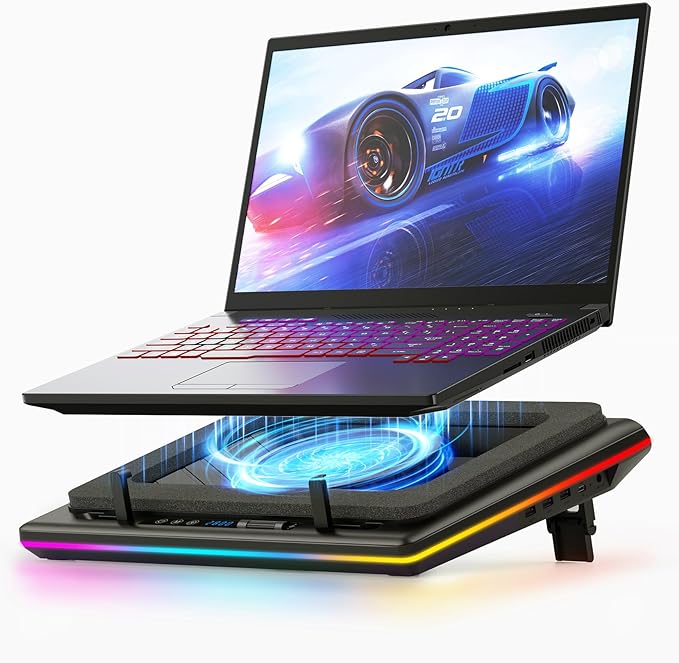
- Air-Supplied Coolers: These typically consist of a flat plate or bracket equipped with a fan that blows air from bottom to top. They are designed to assist with side ventilation, helping to expel hot air and lower the laptop’s internal temperature. The built-in fan circulates air from the laptop’s vent to facilitate cooling. Advantages include a large fan size, low noise levels, affordability, and a decent cooling effect (around 10-20 °C reduction). Some models can double as a stand for the laptop, promoting better ergonomics.
However, there are drawbacks: cooling is focused mainly on the laptop’s bottom surface, with limited overall effectiveness. Noise levels can be noticeable, and improper ventilation may lead to wear and tear on the motor and bearings. Different laptop models may require specific attachments, and the cooler may easily slip off the laptop if not secured properly.
How to Choose a Laptop Cooler
- Material: Coolers can be made of plastic, metal, or a combination of both. While plastic is inexpensive, it has poor thermal conductivity. Metal coolers offer superior performance but may come at a higher cost. Aluminum is often the best choice for effective heat dissipation.
- Fan Configuration: A high-speed fan with larger blades typically generates more airflow, but it can also increase noise levels. Look for coolers with larger fan designs that maintain quieter operation.
- Power Supply: Most laptop coolers use USB power, which is convenient. However, this can limit connectivity with other devices. A cooler that operates on an external power supply may be a safer choice to avoid potential short circuits and motherboard damage.
- Noise Levels: Since fans generate noise, opt for a cooler with adjustable speed settings to help manage noise while still providing effective cooling.
- Compatibility: The cooler’s design must match the laptop’s ventilation system for optimal cooling. Ensure there is no gap between the cooler’s air inlet and the laptop’s vents.
- Power Requirements: For optimal performance, select a cooler that operates on 12V power. Models powered by the laptop’s USB (5V) may not provide sufficient airflow and may underperform.
- Additional Features: Some coolers come equipped with temperature monitoring systems that activate cooling when temperatures exceed safe limits, or manual controls to adjust airflow.
How to Use a Laptop Cooler
- For a Cooling Base: Place the cooling base under the laptop and connect it to an external power source. After plugging in the USB connector to the laptop, the fan should start running. If it doesn’t, check for a switch on the cooler.
- For an Exhaust Cooler: Align the cooler’s air outlet with the laptop’s exhaust vent and ensure a tight fit. Some models feature buttons for switching between automatic temperature control and manual settings.
Laptop Cooling Tips
- Elevate the laptop slightly to improve airflow underneath.
- Use a standard fan to blow air diagonally onto the keyboard.
- Consider using air conditioning to lower the ambient temperature.
- Clean your laptop regularly, ideally every six months to a year.
- Disconnect unused peripherals, such as CD drives.
- Remove any keyboard protectors that may trap heat.
- Ensure the power adapter is in a well-ventilated area.
Laptops are delicate devices, and a good cooler can help prevent overheating and related issues. When selecting and using a laptop cooler, be mindful to maximize its effectiveness. Don’t wait until your laptop faces overheating problems—invest in a cooling solution today to keep your device running smoothly!