
Understanding and Managing Computer Power Consumption
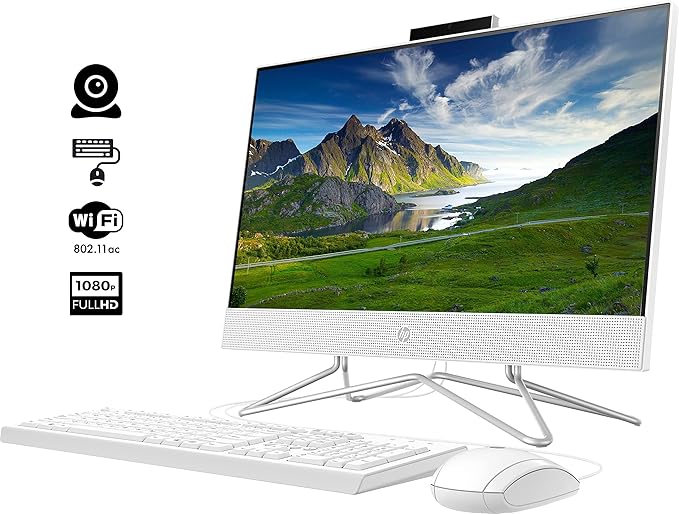
In today’s world, computers are essential for work, study, and entertainment, and many people even leave them on throughout the day. While using a computer can be exciting, it also consumes significant power, leading to higher electricity bills over time. Even when idle, computers draw power, and desktop computers, in particular, use much more energy than laptops. To promote environmental protection and energy savings, it’s essential to understand the factors that affect computer power consumption and how to manage it to both reduce energy usage and prolong the computer’s lifespan.
Computer Power Consumption
Power Consumption of Desktop Computers
The power consumed by a desktop computer mainly comes from the combined energy usage of all components inside the case, including the CPU, motherboard, graphics card, hard drive, and peripherals (e.g., USB devices, keyboard, mouse). The primary power consumption of a desktop setup comes from the tower and the monitor.
- Desktop Tower Power Consumption: The average hourly power draw of a desktop tower ranges from 150W to 200W. Common power usage by component:
- CPU: 60-100W
- Motherboard: 25-35W
- Hard Disk: 7-13.5W
- Memory: 10-30W
- Graphics Card: 30-100W
- Sound Card: 5W
- Optical Drive: 15-20W
- Floppy Drive: 5W
For high-performance setups, such as those with powerful graphics cards or multi-core processors, power consumption will be higher.
- Accessory Power Consumption:
- 17-inch LCD Monitor: ~30W
- 17-inch CRT Monitor: ~75W
- Mouse: 2.5W
- Keyboard: 2.5W
- Speakers: ~10W
- Standby and Off-State Consumption: Even in standby, a desktop computer consumes around 20W, and when off (but plugged in), it can still draw 3-5W.
Calculating Desktop Power Usage
A typical desktop computer with monitor consumes around 300-400W. If the computer runs for 10 hours per day, the total power usage is approximately 3-4 kWh daily. At an electricity cost of 0.7 yuan per kWh, the monthly expense would be roughly 63-84 yuan.
Power Consumption of Laptops
Laptops generally consume less power, with information available on their power adapters. Small laptops typically use less than 65W, while larger ones consume around 85W. Over a 10-hour period:
- Small laptop: 0.65 kWh/day
- Large laptop: 0.85 kWh/day
Factors Affecting Power Consumption
- Processor: Higher frequency processors and those with dual-core technology tend to consume more power.
- Graphics Card: Graphics cards, especially high-performance models, can be significant power consumers. For example, NVIDIA’s graphics cards range from 58W (GF6600) to 110W (7800GTX), with dual-card setups consuming even more.
- Hard Drive and Storage Devices: Modern 7200 RPM SATA hard drives use about 13W, and combined with DVD drives and other peripherals, storage devices consume a noticeable amount of power.
Tips for Reducing Computer Power Consumption
- Standby and Shutdown: For breaks under an hour, use standby mode. For longer breaks, shut down the computer and unplug it to fully cut off power.
- Peripheral Management: Turn off and unplug devices like printers and speakers when not in use to prevent unnecessary power drain.
- Disable Unused Hardware: Use BIOS settings to disable CD-ROMs, floppy drives, and network cards that aren’t needed, which also helps prolong their lifespan.
- Cool the CPU: High CPU temperatures lead to increased power draw. Consider using cooling software to manage CPU heat.
- Adjust Display Settings: Dimming your screen background while doing tasks like text editing saves power and reduces eye strain.
- Avoid Overclocking: Overclocking increases power usage and heat. Stick to default settings if performance needs are met without overclocking.
- Clear System Junk: Regularly delete temporary files to reduce background processes and prevent excess power usage.
- Uninstall Unused Software: Remove any software you no longer use to optimize system performance and reduce energy consumption.
By implementing these energy-saving tips, you can make your computer usage more environmentally friendly, reduce electricity costs, and extend the life of your equipment.